
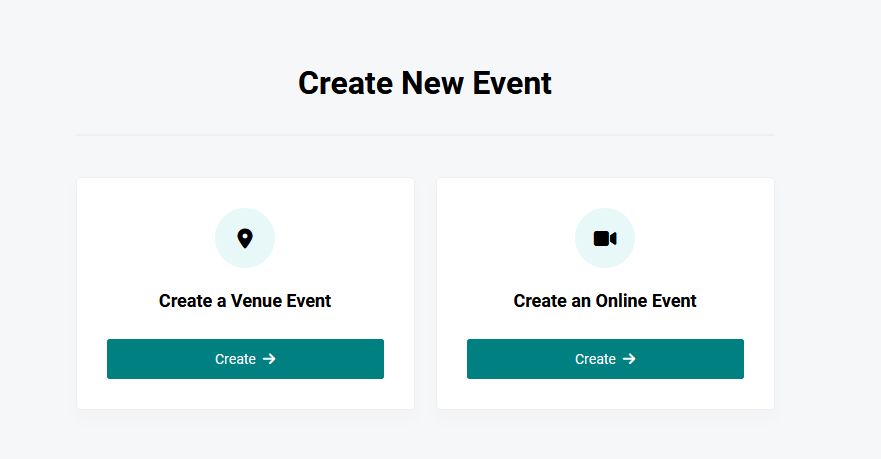
Creating online events is very simple. Follow these steps:
Login to Your Account:
Access your ShowRave Events account by logging in.
Open the Menu:
Click on the MENU button located at the top left of your mobile screen.
Start Creating Your Event:
Locate and click on the CREATE EVENT button.
Select Event Type:
You will see options for different event types. Click on CREATE under "Create an Online Event."
Enter Event Details:
Event Name:Provide the name of your event.
Organizer Name:Enter your name or the name of the person/organization organizing the event.
Category:Choose the category that best fits your event.
Date and Time:Enter the date, time, and projected duration of your event.
Event Duration:Indicate whether your event is a one-day event or spans multiple days.
Upload Event Images:
Upload the main image of your event. You can also upload up to four additional relevant pictures (maximum image size is 3MB each).
Describe Your Event:
Provide a detailed description of your event, including any additional information attendees should know.
Set Event Location:
The location will automatically be set as "Online" since you are creating an online event.
Add Event Link:
If you have the online event link ready, enter it. If not, you can leave this field blank and update it later.
Proceed to Ticket Creation:
Click on NEXT to create tickets for your online event.
Add Tickets or Extras:
You will have the option to add tickets or Asoebi/Uniform details. If you are not adding any, simply click NEXT to proceed to the Summary Page.
Review and Finalize:
On the Summary Page, review all the details of your event. If everything is correct, your event will be created for free.
LearnHow to Create Tickets for Your Event Here.
Note:If you do not create a ticket for your event, our system will automatically generate a FREE ticket for you.
By following these steps, you can easily create and manage an online event.